

If you have some patience, I’ll be able to look into it next week, and I’ll have the update ready by the end of the month!

Blioumis
16
Posts
2
Topics
18
Followers
3
Following
A member registered Mar 07, 2026 · View creator page →
Creator of
8-Bit Sound Effect Generator
Recent community posts
Into the Depths – A New Chapter of Exploration Begins comments · Replied to charduva#char in Into the Depths – A New Chapter of Exploration Begins comments
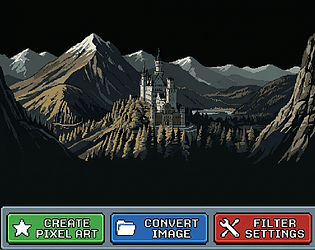
PIXEL·IZER is a browser-based image-to-pixel-art conversion tool that runs entirely on your device — no uploads to servers, no subscriptions, no internet required after the initial load. It takes any photograph, illustration, or sprite sheet and transforms it into clean, game-ready pixel art through a multi-stage processing pipeline with fine-grained controls at every step.
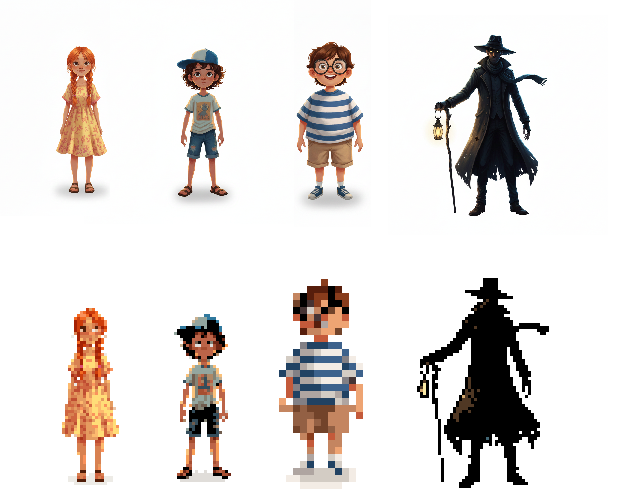
Here are all the sliders and controls in the application:
- Pixel Size (2–32) — Determines how many pixels of the original image are compressed into a single pixel art block. Low value = more detailed result, high value = more "blocky" and chunky appearance.
- Colors (2–64) — How many distinct colors the final palette will contain. Fewer colors produce a more retro aesthetic, more colors preserve richer detail and gradients.
- Contrast Boost (-50 to +100) — Increases or decreases the contrast of the image before conversion. Higher values make region boundaries more distinct and edges cleaner in the final result.
- Black Boost Threshold (10–120) — Defines how dark a pixel needs to be before it gets pushed to pure black. Low value = only the very darkest pixels are affected, high value = medium-dark pixels also become black, naturally producing outlines without a separate outline pass.
- Color Simplify — Area Size (2–5px) — The radius of the neighbourhood within which the tool searches for similar colors to merge. 2 = very subtle simplification, 5 = very flat, anime-style result with large uniform color regions.
- Color Simplify — Similarity Threshold (5–80) — How different two colors can be while still being considered "similar enough" to merge. Low value = only nearly identical colors are merged, high value = noticeably different colors are also grouped together.
- Remove Background — Sensitivity (5–80) — How light a pixel needs to be for the tool to consider it background. Low value = only pure white is removed, high value = off-white, light grey, and pale-colored backgrounds are also removed.
- Inner Sprite Outline — Thickness (1–4px) — The thickness in pixels of the inner outline drawn just inside the sprite's border. 1 = a thin single-pixel ring, 4 = a bold inner stroke that visually pushes the sprite edges inward.
- Detail Outline — Sensitivity (5–80) — How strong a color change needs to be before the Sobel edge detector registers it as an edge. Low value = even subtle color shifts are detected, high value = only strong boundaries like eyes, hair lines, and clothing seams are detected.
- Detail Outline — Thickness (1–3px) — The thickness of the lines drawn by the Sobel algorithm along detected edges. 1 = fine lines, 3 = bold outlines that emphasize facial features and clothing details.